Home / Topics / Tech Help / Phones and apps
Phones and apps
What “Not Delivered” means in iPhone Messages
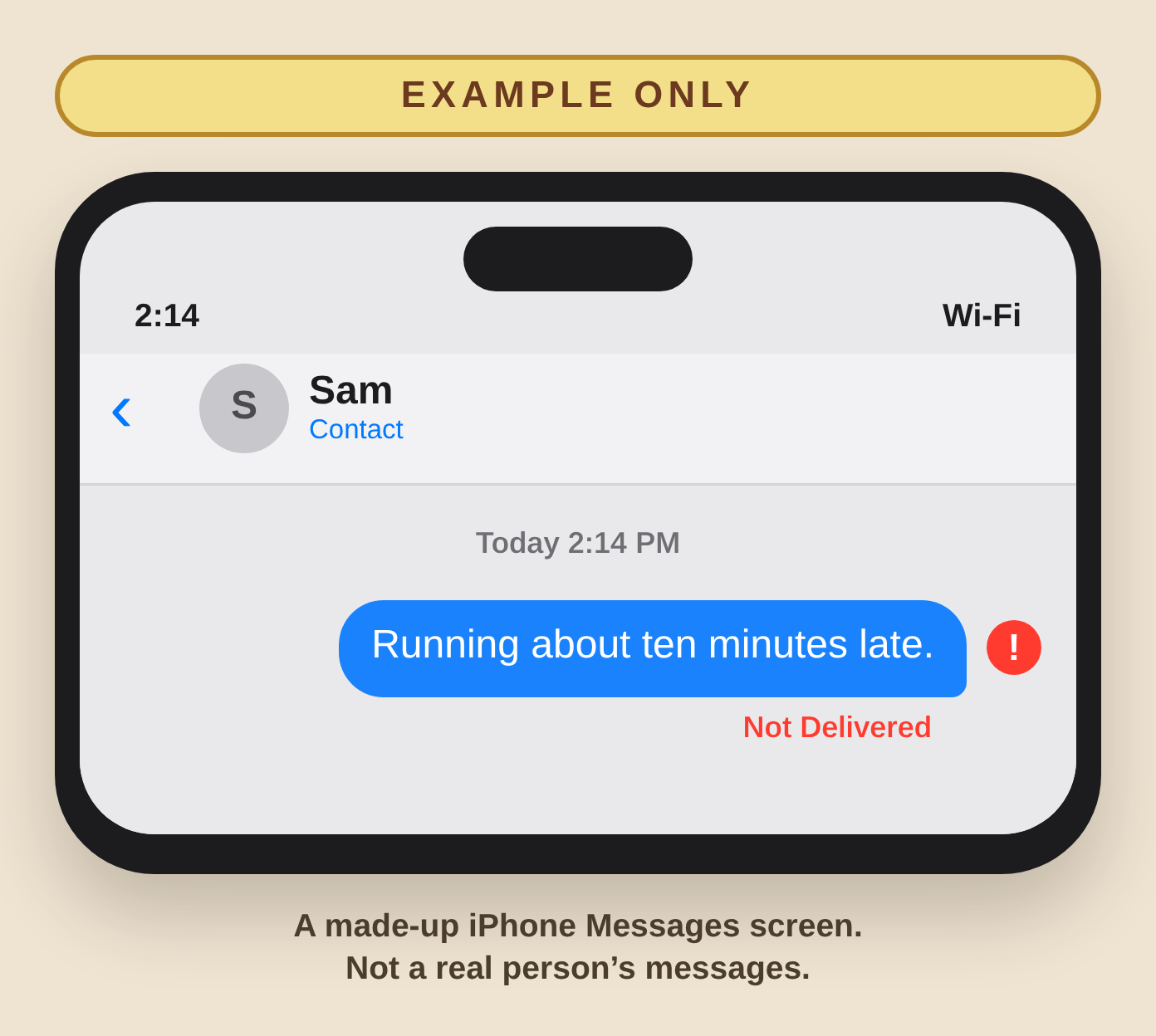
This is a worked example of the kind of picture you can send: a confusing message on a phone. The image below is a made-up example, not a screenshot from a real person.
What it means
Your iPhone tried to send the message and could not finish the job. The red exclamation mark and the words “Not Delivered” are a warning, not a punishment. The message is still on your phone. It has not been confirmed as received by the other person.
If the bubble is blue, your phone was trying to send an iMessage — Apple’s internet messages between iPhones, iPads, and Macs. Those need a Wi‑Fi or cellular-data connection. Green bubbles are regular text messages (SMS, MMS, or RCS) and usually travel over your phone’s cellular signal. A “Not Delivered” warning can appear on either kind, but it is especially common when an iMessage cannot get through.
Likely causes
- Your Wi‑Fi or cellular data is weak, off, or briefly disconnected.
- iMessage is turned off, still activating, or needs a fresh sign-in.
- Apple’s iMessage service is having a short outage, or your phone number is not selected under Send & Receive.
- The problem is only with one person. Their phone may be off, out of signal, or no longer set up for iMessage — for example, if they recently switched to a non-iPhone. In some cases they may have blocked the number, though you usually cannot know that for sure.
Ways to fix it, easiest first
- Check that you have a signal or Wi‑Fi. If you are on Wi‑Fi, try turning it off and using cellular data, or the other way around. If the signal looks weak, move to a spot with a better connection and wait a moment.
- Tap the red exclamation mark, then tap Try Again.
- If it still fails, tap the red exclamation mark again, then tap Send as Text Message. The bubble may turn green. This uses your regular texting plan, and your carrier may charge for it.
- To have the iPhone do that automatically next time, open the Settings app, tap Apps, then tap Messages, and turn on Reply as Text Message. (On some phones this switch is labeled Retry as Text Message.) If you do not see that switch, your carrier may not offer it.
- On that same Messages settings screen, make sure iMessage is turned on. If it is already on, turn it off, wait about a minute, and turn it back on. Then tap Send & Receive and make sure your phone number is selected.
- If iMessage still will not send, sign out of it and sign back in — without signing out of your whole Apple Account. In Settings, tap Apps, then Messages, then Send & Receive. Tap your Apple Account (this used to be called an Apple ID) and tap Sign Out. Then return to Messages settings, turn iMessage on, tap Send & Receive, choose Use your Apple Account for iMessage, and sign back in.
- Restart your iPhone, then try the message one more time.
- Try sending a short message to a different person. If that one goes through, the trouble may be on the other end: their phone may be off, they may have no signal, they may have switched away from iPhone, or, less often, they may have blocked the number. You usually cannot confirm a block. It is fair to reach them another way, such as a regular phone call.
If none of this works, you can look for Messages on Apple’s System Status page, or ask someone you trust to help you check. Apple Support or your phone carrier can also help, especially if regular green text messages fail too.
Ask AI yourself
You can also show a picture of an error to an AI assistant such as Grok, ChatGPT, or Claude. First, cover personal details on the screen, then take a new photo or screenshot.
In most assistants, look for a paperclip, plus sign, or image button next to the box where you type. You can often paste a screenshot too. Attach the picture first, then type a short note like the words below.
I have attached a picture of a message or error on my phone. I have covered any names, phone numbers, and private details. In plain English, please tell me what this means and the simplest ways to fix it, starting with the easiest. If you are not sure, please say so, and tell me what to check.
An assistant can misread a picture. If the steps do not match what you see on your screen, pause and ask a person you trust, or wait until you can send the picture through this site’s form.